
Offline voice assistant & dictation tool for Windows (Python) - dictate text anywhere or manage notes, appointments and reminders hands-free.





- 🎙️ Microphone selection - pick your input device from Settings, with hot-plug refresh
- 🔄 Toggle recording mode - press once to start, press again to stop (alternative to hold)
- ⏱️ Safety timeout - auto-stops recording in toggle mode if you forget
- 🎨 Redesigned UI - CustomTkinter with unified Pandora Blackboard theme (pure black + bright white)
- 🖥️ Resizable Notes window - drag to resize, maximize/restore, DPI-aware
- ⚡ Faster Ollama responses - timeout increased from 10s to 30s for larger models
- 🐛 Bug fixes - clean shutdown, widget positioning, visual artifacts removed
- 🔌 Reliable mic switching - select any microphone (USB, Bluetooth, AirPods) from Settings and switch on the fly without restart. Tested with Bluetooth HFP devices.
- 📦 Standalone exe - download and run, no Python installation required. Whisper model downloads automatically on first launch.
- ⚙️ Full Settings panel - Ollama model/URL, Whisper model, language, microphone, recording mode - all configurable from the tray menu.
💬 Feedback welcome! If you test WritHer with different microphones or setups, please open an issue and let us know how it goes. Your feedback helps improve the app for everyone.
WritHer sits quietly in your system tray and gives you two super-powers:
| Mode | Hotkey | What it does |
|---|---|---|
| Dictation | AltGr |
Transcribes your voice and pastes the text directly into whichever app has focus - editors, browsers, chat windows, anything. |
| Assistant | Ctrl+R |
Understands natural-language commands and saves notes, creates appointments, sets reminders, manages lists - all by voice. |
Both hotkeys support two recording modes, configurable from the Settings window in the system tray:
| Recording mode | How it works |
|---|---|
| Hold (default) | Hold the key to record, release to stop. |
| Toggle | Press once to start recording, press again to stop. A configurable safety timeout auto-stops the recording if you forget. |
Everything runs locally: speech recognition via faster-whisper, intent parsing via Ollama, and data stored in a local SQLite database. No cloud, no API keys, no telemetry.
- Real-time dictation - speak and text appears. Supports both hold-to-record and toggle (press to start/stop) modes. Clipboard is saved and restored automatically.
- Voice-controlled assistant - save notes, create shopping/todo lists, schedule appointments, set reminders, all through natural speech.
- Smart date parsing - say "remind me tomorrow at 9" or "meeting next Monday at 3pm" and the LLM converts relative times to absolute datetimes.
- Toast notifications - get Windows notifications when reminders fire or appointments are approaching.
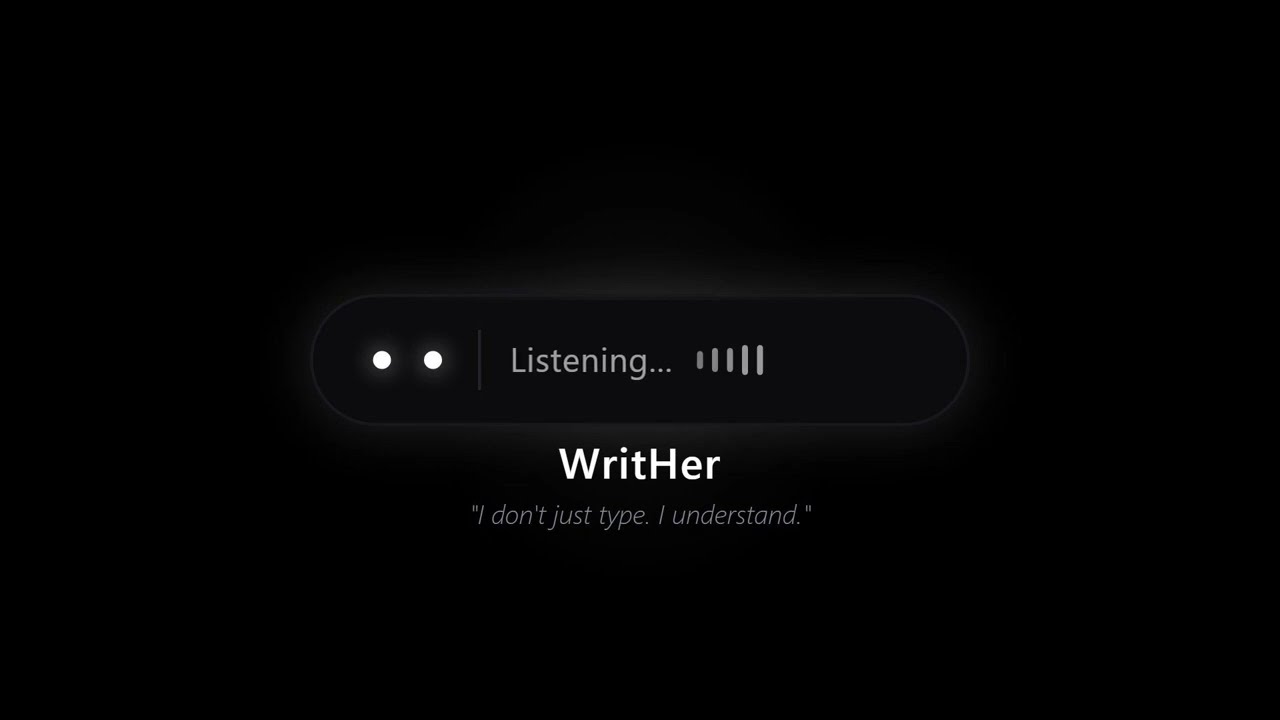
- Animated floating widget - a minimal pill-shaped overlay with expressive "Pandora Blackboard" eyes that react to state (listening, thinking, happy, error, etc.).
- Notes & Agenda window - a dark-themed resizable window to browse, check off list items, and delete notes/appointments/reminders. Supports maximize/restore and drag-to-resize.
- Settings window - configure recording mode, max recording duration, and microphone device directly from the system tray. All settings are persisted across restarts.
- Microphone selection - choose your input device from a dropdown in Settings. Supports hot-plug detection with a refresh button - no restart needed.
- Modern UI - built with CustomTkinter and a unified "Pandora Blackboard" theme (pure black + bright white) defined in a single
theme.pyfile. - Multi-language - ships with English and Italian; easy to add more via the
locales.pystring table. - Fully offline - no internet required after model download.
┌──────────────────────────────────────────────────────┐
│                     main.py                          │
│            (orchestrator + Tk event loop)             │
├──────────┬───────────┬───────────┬───────────────────┤
│ hotkey   │ recorder  │ widget    │ tray_icon          │
│ listener │ (audio)   │ (overlay) │ (system tray)      │
├──────────┴───────────┴───────────┴───────────────────┤
│                                                      │
│  Dictation pipeline          Assistant pipeline      │
│  ┌───────────┐               ┌───────────┐           │
│  │transcriber│               │transcriber│           │
│  │ (Whisper) │               │ (Whisper) │           │
│  └─────┬─────┘               └─────┬─────┘           │
│        ▼                           ▼                 │
│   injector                    assistant              │
│  (clipboard                  (Ollama LLM             │
│   + Ctrl+V)                  + function calls)       │
│                                    │                 │
│                                    ▼                 │
│                               database               │
│                              (SQLite)                │
│                                    │                 │
│                              notifier                │
│                          (toast scheduler)            │
└──────────────────────────────────────────────────────┘
- Windows 10/11
- Ollama running locally (for the assistant mode)
- A working microphone
- Internet connection on first launch (to download the Whisper speech model, ~74 MB)
- Download
WritHer-v1.0.0-win64.zipfrom the latest release - Extract to any folder
- Run
WritHer.exe - On first launch, the Whisper model will be downloaded automatically (you'll see the progress in the console window)
- Right-click the tray icon for Settings and Notes & Agenda
Note: Ollama must be installed and running for the voice assistant (Ctrl+R). Dictation (AltGr) works without Ollama.
git clone https://github.com/benmaster82/writher.git
cd writherpython -m venv venv
venv\Scripts\activateRequires Python 3.11+
pip install faster-whisper numpy sounddevice pynput pystray Pillow requests winotify customtkinterOptional: install
plyeras a fallback notification backend:pip install plyer
Download from ollama.com, then pull a model that supports function calling:
ollama pull llama3.1:8bUpdate config.py with your model name:
OLLAMA_MODEL = "llama3.1:8b"python main.pyWrither appears in the system tray. Hold AltGr to dictate, hold Ctrl+R for assistant commands.
All settings live in config.py:
# Hotkeys
HOTKEY = Key.alt_gr            # Dictation
ASSISTANT_HOTKEY = Key.ctrl_r  # Assistant

# Language ("en" or "it")
LANGUAGE = "en"

# Recording mode
HOLD_TO_RECORD = True          # True = hold key, False = toggle (press/press)
MAX_RECORD_SECONDS = 120       # Safety timeout for toggle mode (seconds)

# Microphone
MIC_DEVICE_INDEX = None        # None = system default, or device index (int)

# Whisper
MODEL_SIZE = "base"            # tiny, base, small, medium, large-v3
DEVICE = "cpu"                 # "cpu" or "cuda"
COMPUTE_TYPE = "int8"          # int8, float16, float32

# Ollama
OLLAMA_URL = "http://localhost:11434"
OLLAMA_MODEL = "llama3.1:8b"

# Notification lead time
APPOINTMENT_REMIND_MINUTES = 15
Note:
HOLD_TO_RECORD,MAX_RECORD_SECONDS, andMIC_DEVICE_INDEXcan also be changed at runtime from the Settings window in the system tray. Changes made there are persisted in the database and overrideconfig.pydefaults.
| Model | Size | Speed | Accuracy |
|---|---|---|---|
tiny |
39 MB | ⚡ fastest | basic |
base |
74 MB | ⚡ fast | good (default) |
small |
244 MB | moderate | better |
medium |
769 MB | slower | great |
large-v3 |
1.5 GB | slowest | best |
For CUDA acceleration, install ctranslate2 with CUDA support and set DEVICE = "cuda".
Hold mode (default):
- Focus any text field (editor, browser, chat…)
- Hold
AltGr - Speak
- Release - transcribed text is pasted automatically
Toggle mode:
- Focus any text field
- Press
AltGronce to start recording - Speak
- Press
AltGragain to stop - transcribed text is pasted automatically
In toggle mode, a safety timeout (configurable in Settings) will auto-stop the recording if you forget to press the key again.
Hold mode (default):
- Hold
Ctrl+R - Speak a command
- Release - Writher processes and confirms
Toggle mode:
- Press
Ctrl+Ronce to start recording - Speak a command
- Press
Ctrl+Ragain to stop - Writher processes and confirms
Example commands:
- "Save a note: remember to buy milk"
- "Create a shopping list: bread, eggs, butter, coffee"
- "Add pasta to the shopping list"
- "Appointment with the dentist tomorrow at 3pm"
- "Remind me to call Marco in one hour"
- "Show me my notes"
- "Show my agenda"
Right-click the tray icon to access:
- Notes & Agenda - open the notes/appointments/reminders viewer
- Settings - configure recording mode (hold vs toggle), max recording duration, and microphone device
- Quit - exit WritHer
Tip: Windows may hide the tray icon in the overflow area (the ^ arrow). To keep it always visible, go to Settings → Personalization → Taskbar → Other system tray icons and enable WritHer.
- Open
locales.py - Add a new entry to the
_STRINGSdictionary (copy"en"as a template) - Set
LANGUAGEinconfig.pyto your language code
writher/
├── main.py              # Entry point and orchestrator
├── config.py            # All user-configurable settings
├── hotkey.py            # Dual-hotkey listener with hold/toggle modes (pynput)
├── recorder.py          # Microphone recording (sounddevice)
├── transcriber.py       # Speech-to-text (faster-whisper)
├── injector.py          # Clipboard paste into active app (Win32 API)
├── assistant.py         # Ollama LLM integration + function calling
├── database.py          # SQLite storage (notes, appointments, reminders, settings)
├── notifier.py          # Toast notifications + reminder/appointment scheduler
├── widget.py            # Floating pill overlay with animated eyes
├── notes_window.py      # Notes/Agenda/Reminders viewer window (CustomTkinter)
├── settings_window.py   # Settings window (CustomTkinter)
├── tray_icon.py         # System tray icon (pystray)
├── brand.py             # "Pandora Blackboard" icon renderer
├── theme.py             # Unified colour palette and font definitions
├── locales.py           # i18n string tables (EN, IT)
├── logger.py            # Rotating file + console logger
├── debug_keys.py        # Key event debugger utility
├── requirements.txt     # Python dependencies
├── img/
│   └── logo_writher.png # Logo for README
└── LICENSE
AltGr not detected?
Run python debug_keys.py to see exactly what pynput reports for your keyboard. Some keyboard layouts map AltGr differently.
Ollama not reachable?
Make sure Ollama is running (ollama serve) and the URL in config.py matches. The tray tooltip will show a warning if the connection fails at startup.
No audio / microphone not found? WritHer uses the system default input device unless you select a specific one in Settings. If the widget shows "🎤 No microphone detected", check your Windows sound settings. You can also open Settings from the tray and use the microphone dropdown to pick the correct device. Hit the ⟳ button to refresh the list if you just plugged in a new mic.
"No speech detected" but microphone works? This usually means Whisper received audio but couldn't recognize speech. Common causes:
- Wrong input device selected (e.g. "Stereo Mix" instead of your actual mic) - check the microphone dropdown in Settings
- Microphone volume too low in Windows sound settings (aim for 70-80%)
- Try switching to
MODEL_SIZE = "small"inconfig.pyfor better accuracy with lower quality audio
Text not pasting?
The injector uses Ctrl+V via the clipboard. Some apps with custom input handling may not respond. If injection fails, the text is saved to recovery_notes.txt so nothing is lost.
Tray icon not visible? Windows 11 hides new tray icons by default. Go to Settings → Personalization → Taskbar → Other system tray icons and enable WritHer to keep it always visible.
MIT
WritHer is a young project and contributions are very welcome!
Here are the areas where help is most needed:
- macOS port - replace Win32 injection and winotify with macOS equivalents
- Linux port - same as above for Linux (xdotool, libnotify, etc.)
- New languages - just add an entry to
locales.py - Ollama model testing - report which models work best with function calling
- Bug reports and UX feedback - open an issue, any feedback is appreciated
If you want to contribute, feel free to open an issue to discuss your idea first, or just fork and submit a PR. No formal process required, just good intentions.
Built with 🎙️ faster-whisper · 🧠 Ollama · 🐍 Python